Make a Step-a-sketch
Hardware kit
- Axidraw V3 (with motors pre-wired to connectors)
- Stepdance Main Board (with two stepper drivers and one hobby servo driver)
- 12V DC power supply
- USB-A to micro USB (5V power supply + serial connection to Teensy)
- Two encoders (pre-wired)
- One button (pre-wired)
1. Software installation check
- Make sure you have Arduino IDE + Teensyduino + Stepdance library installed on your laptop. Reach out to instructors if something went wrong during installation.
2. Wiring hardware
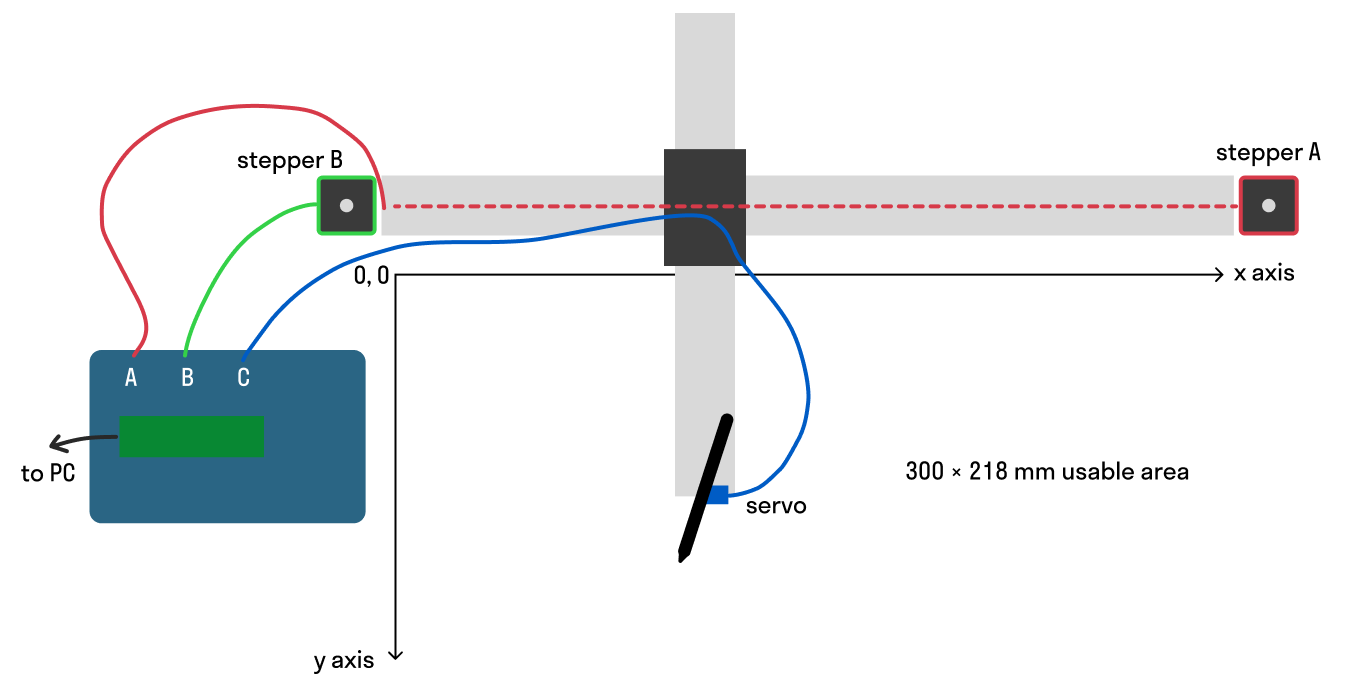
- Both AxiDraw stepper motors to Output Ports A and B. Wire the right motor to A, and the left motor to B (see diagram below).
- The servo motor to Output Port C.
- Two encoders, one to each of the encoder input ports ENC1 and ENC2.
- One pushbutton to digital input port D1.
- Micro-USB cable from the Teensy to your laptop.
- 12VDC from the 5.5mm OD / 2.1mm ID barrel plug to a wall plug.
3. Programming Teensy
- Open the base Arduino sketch in
lib/examples/cmc_course/01_step_a_sketch - Connect board to laptop via USB
- Select the correct port for the board in Arduino IDE
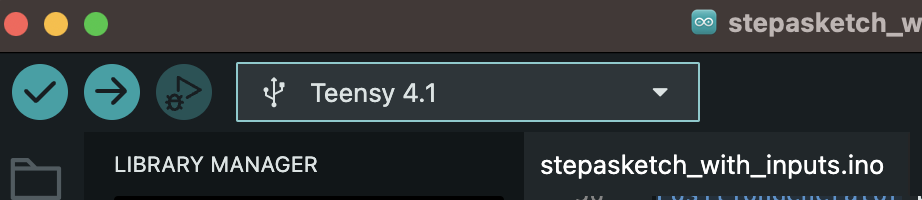
- Make sure your USB Type is
Dual Serial:Tools > USB Type > Dual Serial. If you skip this, you will see a compile-time error:
error: 'SerialUSB1' was not declared in this scope
- Click the
Uploadbutton. The sketch will be compiled and uploaded to the Teensy. Check for any errors in theOutputpanel. - Test that the system works: pressing the button should trigger the servo-motor to raise and lower the pen, turning encoder 1 should move the left motor and turning encoder 2 should move the right motor.
At the end of this stage, your Axidraw should be moving!
The Axidraw will not stop moving when it hits the limits of feasible motion. When colliding, it will simply continue trying to turn the steppers and they will skip steps if the axis physically cannot move anymore. Please be kind to your Axidraw and try to avoid collisions as much as possible ❤️🩹
4. Setting up Kinematics
The goal of this step is to make it so that we can move the Axidraw along the axes X and Y separately -- we want the first encoder to control the X axis and the second encoder to control the Y axis, like an etch-a-sketch!
The kinematics equations of a machine describe how the motion of the machine's motors (here motors A, B and C) maps to the motion of its end-effector in the cartesian (XYZ) frame of reference. By convention, we define the X axis as the long axis of the Axidraw, pointing towards the right, and the X axis as the short axis of the Axidraw, pointing down (see axes on wiring diagram above).
As you can see, the Axidraw's pen moves diagonally in the XY plane when either only the A or B stepper motor turns. If we want to move the pen along the X axis, we need to send motion signal to both A and B, and similar for moving along Y:
a = x + y
b = x - y
The Stepdance software library provides a utility to compute the kinematic transformation for the Axidraw (H-bot kinematics, that has the same equation as the CoreXY kinematics). We will add it to the Arduino sketch by making changes to 2 places in the code:
Declaring
Add the following code to the declaration block:
// -- Define Kinematics --
KinematicsCoreXY axidraw_kinematics;
Initialize and configure the kinematics
We need to initialize the kinematics object in the setup function (all plugin objects must be initialized):
// -- Configure and start the kinematics module --
axidraw_kinematics.begin();
Continuing, we configure them by mapping the encoders' motion to the X and Y inputs of the kinematics:
// Delete/comment out these lines (we don't want to map the encoders directly to the motors anymore)
// -- Map the encoders to the channels
// encoder_1.output.map(&channel_a.input_target_position);
// encoder_2.output.map(&channel_b.input_target_position);

// -- Configure and start the kinematics module --
axidraw_kinematics.begin();

// Map X and Y (encoders) to input, and A and B (motors/channels) to output
encoder_1.output.map(&axidraw_kinematics.input_x);
encoder_2.output.map(&axidraw_kinematics.input_y);
axidraw_kinematics.output_a.map(&channel_a.input_target_position);
axidraw_kinematics.output_b.map(&channel_b.input_target_position);
Result
After uploading the new sketch, you should see the Axidraw move like an etch-a-sketch (encoder 1 controls the X axis, encoder 2 controls the Y axis).
Pointers quick intro
Why do we need to use "&"?
Arduino programming is done mainly in C++, so you will be encountering some C++ specific syntax. If you have worked with other programming languages before (Python, C#, Java) but are unfamiliar with C++, the main thing to keep in mind is that the Stepdance library often uses pointers.
For the gist about pointers, see: https://www.geeksforgeeks.org/c/c-pointers/
And this is why you need to use & symbols in some Stepdance methods:
// The map method on a BlockPort object takes as argument a pointer to another blockport
// Since axidraw_kinematics.input_x is a BlockPort,
// then &axidraw_kinematics.input_x is a pointer to that BlockPort
encoder_1.output.map(&axidraw_kinematics.input_x);